
Download WiFi Connect – Secure Mac App for Fast GoPro Wi‑Fi Transfer
Overview
WiFi Connect for GoPro is a dedicated Mac application designed to simplify the wireless transfer of photos and videos from your GoPro camera to your computer. Developed by Pavel Kostka, this full‑version tool belongs to the “Photo & Video sharing” category and targets creators who need a reliable, one‑click solution for moving large media files without fiddling with complex network settings. Since its soft launch on June 21 2022, the app has gathered a modest but enthusiastic community of Mac users who appreciate its straightforward interface and native macOS integration.
The current stable build, version 2.1, runs on macOS X and later, supporting all recent Intel‑ and Apple‑silicon Macs. Although the UI is limited to English, the underlying functionality is language‑agnostic, making it a solid choice for international users who simply need a dependable bridge between their GoPro’s Wi‑Fi hotspot and the Mac desktop environment. The software is offered as a free download, which means you can start using it right away without a trial period or hidden fees.
Security‑conscious users will also notice that WiFi Connect does not store any personal data on external servers; all transfers happen locally over a direct Wi‑Fi connection, keeping your footage private and your workflow efficient. In short, WiFi Connect fills a niche that many generic file‑transfer utilities overlook: a purpose‑built, Mac‑native solution for GoPro enthusiasts who demand speed, simplicity, and peace of mind.
Key Features
- One‑Click Connection: Detects the GoPro Wi‑Fi network automatically and establishes a secure link with a single click.
- Batch Transfer: Move entire folders of photos and 4K video clips at once, eliminating the need to select files individually.
- Real‑Time Progress Bar: Detailed visual feedback on transfer speed, remaining time, and file count.
- Native macOS Integration: Uses macOS APIs for smooth performance on both Intel and Apple Silicon chips.
- Automatic Folder Organization: Saves files into date‑based directories, making post‑shoot editing faster.
- Secure Local Transfer: No cloud upload; all data stays on your local network, preserving privacy.
- Customizable Destination: Choose any folder on your Mac, external drive, or network share as the target location.
- Lightweight Installer: The download package is under 30 MB, ensuring quick installation and minimal disk usage.
- Continuous Updates: The developer promises regular bug fixes and compatibility updates for new macOS releases.
- Free of Charge: Fully functional without a license key, trial limits, or hidden in‑app purchases.
These features combine to make WiFi Connect a focused, reliable tool that eliminates the guesswork often associated with wireless transfers. While many generic file‑sharing apps require manual IP configuration or third‑party plugins, WiFi Connect streamlines the entire process into a single, Mac‑optimized experience. The batch‑transfer capability is especially valuable for adventure photographers who capture hours of footage in a single session; instead of waiting for each clip to sync, the app queues the entire shoot and handles it in the background.
Moreover, the real‑time progress bar provides transparency, letting you plan your editing workflow around the transfer status. The customizable destination folder means you can integrate the app directly into your existing media management pipeline, whether you store files on a local SSD for fast editing or on an external RAID for long‑term archiving. Overall, the feature set reflects a clear understanding of the GoPro user’s workflow, focusing on speed, security, and simplicity.
Installation, Usage & Compatibility
How to Install WiFi Connect on macOS
Installing WiFi Connect is a straightforward three‑step process designed for users of all skill levels. First, visit the official download page or a trusted software portal and click the “Download for Mac” button. The installer file, typically named WiFiConnect_v2.1.dmg, will appear in your Downloads folder.
Double‑click the .dmg to mount the disk image, then drag the WiFi Connect icon into your Applications folder. macOS may prompt you to confirm that you trust the developer; simply select “Open” to proceed. Once the app resides in Applications, launch it from Launchpad or Spotlight. On first run, you may need to grant the application permission to access your local network—this is a standard macOS security measure.
Accept the prompt, and you’re ready to connect your GoPro.
Step‑by‑Step Usage Guide
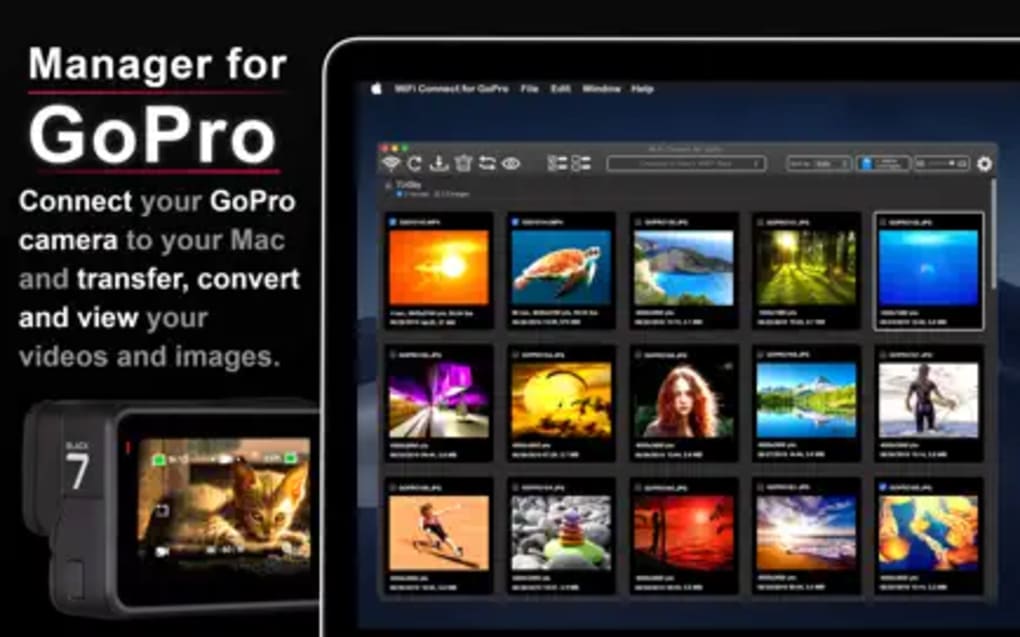
After launching WiFi Connect, the main window displays a “Connect to GoPro” button. Power on your GoPro’s Wi‑Fi hotspot via the camera’s settings menu; the camera will broadcast a network name like GP…_WIFI. Return to the app and click the connection button; the software scans for the GoPro SSID and, once detected, establishes a secure link automatically.
A pop‑up confirms the connection and shows the camera’s battery level and storage status. To begin transferring, click the “Transfer Files” button, select the destination folder (or accept the default “Downloads/GoPro”), and watch the progress bar as your media streams to the Mac. You can pause or cancel the transfer at any time, and the app will remember the last used folder for future sessions.
After the transfer completes, a summary dialog provides file counts, total size transferred, and the elapsed time, allowing you to quickly verify that everything arrived intact.
System Requirements & Operating System Support
WiFi Connect is built for macOS X and later, meaning it runs on any Mac released since 2001 that supports macOS 10.10 (Yosemite) or newer. The app has been tested on Intel‑based Macs running macOS Monterey (12) as well as Apple‑silicon machines (M1, M2) with Rosetta 2 compatibility. Because the software communicates directly over Wi‑Fi, it does not depend on additional drivers or third‑party frameworks, ensuring stable performance across different hardware configurations. Minimum system specifications include:
- Processor: Intel Core 2 Duo or Apple Silicon (M1/M2)
- RAM: 2 GB (4 GB recommended for large 4K video batches)
- Disk Space: 50 MB for the app + additional space for transferred media
- Network: Built‑in Wi‑Fi adapter compatible with 2.4 GHz and 5 GHz bands
Users running older macOS versions can still download the app, but they may encounter compatibility warnings. In such cases, updating to the latest macOS release is strongly recommended to take full advantage of security patches and performance improvements. Overall, WiFi Connect offers broad compatibility across the Mac ecosystem while maintaining a lightweight footprint that doesn’t burden system resources.
Pros, Cons & Frequently Asked Questions
Pros
- Free, no hidden fees or trial limitations.
- One‑click connection eliminates manual network configuration.
- Batch transfer speeds up workflow for large video files.
- Native macOS design works seamlessly on Intel and Apple Silicon.
- Secure local transfer keeps your footage private.
- Customizable destination folders fit any media management pipeline.
- Lightweight installer (<30 MB) and low system resource usage.
Cons
- Interface limited to English, which may deter non‑English speakers.
- No built‑in editing or preview tools; you must use external apps.
- Lacks advanced scheduling or automation features found in some professional suites.
- Only supports macOS; no Windows, Android, or iOS counterpart.
- Occasional connectivity hiccups on very crowded Wi‑Fi environments.
FAQ
Is WiFi Connect compatible with the latest GoPro models?
Yes, the app works with all GoPro cameras that support Wi‑Fi connectivity, including the HERO10, HERO11, and HERO12 series. The connection process is identical across models.
Do I need to create an account or sign in to use WiFi Connect?
No account is required. The software is completely free and runs locally on your Mac after a simple download and installation.
Can I transfer files to an external SSD or network drive?
Absolutely. During the transfer setup you can choose any mounted volume—including external SSDs, USB drives, or network shares—as the destination folder.
What should I do if the app fails to detect my GoPro’s Wi‑Fi network?
First, ensure the GoPro’s Wi‑Fi hotspot is active and broadcasting. Then, restart both the camera and the Mac’s Wi‑Fi adapter. If the issue persists, check for macOS updates or reinstall WiFi Connect.
Is there a limit to the size of files I can transfer?
There is no built‑in size limit; the app transfers files as long as you have sufficient free space on the destination drive. However, very large 4K video batches may take longer, depending on your Wi‑Fi signal strength.
Conclusion & Call to Action
WiFi Connect for GoPro fills a clear gap in the macOS ecosystem by offering a purpose‑built, free, and secure method for moving high‑resolution media from GoPro cameras to Mac computers. Its one‑click connection, batch transfer capability, and native integration make it an attractive option for creators who value speed and simplicity over feature bloat. While the lack of multilingual support and the absence of Windows or mobile versions limit its reach, the core experience remains solid for the Mac user base. If you regularly shoot with a GoPro and need a reliable way to get footage onto your Mac without tangled cables or third‑party cloud services, WiFi Connect is definitely worth a download.
Ready to streamline your GoPro workflow? Click the button below to download WiFi Connect for free, install it in seconds, and start transferring your adventure footage instantly.
Overall Rating: 4.2 / 5
Pros: Free, fast batch transfer, native Mac support.
Cons: English‑only UI, no Windows version.







